
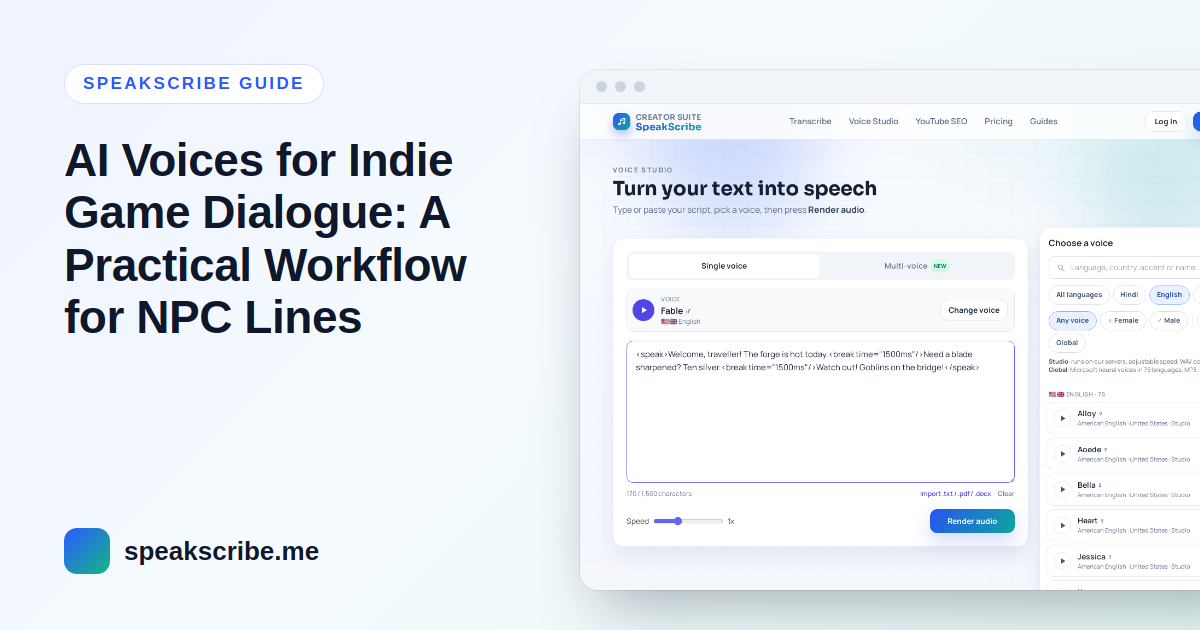
Short answer: cast each character with a different voice (far apart in pitch, so players can tell them apart without looking), write every line on its own line in a script file, render all of one character's lines in a single generation with a pause between them, then split the audio into one file per line in Audacity and import the WAVs into your engine. With Studio voices you get 24 kHz mono WAV files that Unity, Godot and Unreal import directly.
This guide is for small teams and solo developers who need placeholder or final voice lines for NPCs, tutorials and short cutscenes without booking a studio. It uses SpeakScribe's Voice Studio, which you can try free in the browser.
Which voices you can ship in a game
SpeakScribe has two voice families. Studio voices run the open-source Kokoro model (Apache 2.0) on our servers, and our Terms (section 6) allow their audio for any personal or commercial purpose. That makes them the straightforward choice for a game you sell. Global voices cover far more languages and accents, but the Terms limit them to your own content, so for a commercial game release stick to Studio voices. Studio voices currently cover English (American and British), Spanish, French, Italian, Portuguese and Hindi.
Step 1: Cast characters by measured pitch, not by name
Players identify characters by ear in a fraction of a second, so the voices should differ clearly. Pitch is the easiest difference to hear. Below are English Studio voices with their measured median pitch, how much their pitch moves while reading, and pace, all measured on the same passage:
| Voice | Median pitch | Pitch movement | Pace | Suits |
|---|---|---|---|---|
| Onyx (American, male) | 87 Hz | 4.7 semitones (flattest of 75 English voices) | 19.6 chars/s | Guard, ship computer, deadpan narrator |
| Lewis (British, male) | 87 Hz | 10.1 semitones | 16.4 chars/s | Mentor, villain, veteran |
| Fable (British, male) | 115 Hz | 11.5 semitones (most animated Studio voice) | 19.1 chars/s | Hero, trickster, merchant |
| Santa (American, male) | 149 Hz | 10.3 semitones | 16.1 chars/s | Jolly shopkeeper, innkeeper |
| Kore (American, female) | 139 Hz | 7.9 semitones | 17.3 chars/s | Commander, low-voiced lead |
| Nicole (American, female) | 157 Hz | 5.9 semitones | 11.0 chars/s (slowest) | Whispering spirit, mysterious guide |
| Sarah (American, female) | 194 Hz | 9.2 semitones | 17.5 chars/s | Companion, quest giver |
| Alice (British, female) | 208 Hz | 9.2 semitones | 18.2 chars/s | Young lead, sidekick |
Measured October 2026 on each voice's prebuilt sample of the same English passage. Pitch movement is the 10th–90th percentile range in semitones; pace is characters per second including spaces. The "suits" column is our suggestion, not a measurement.
Two rules of thumb: keep characters who share scenes at least five semitones apart in median pitch (Onyx at 87 Hz and Alice at 208 Hz are about 15 semitones apart), and give the most important character a voice with plenty of movement. Low-movement voices like Onyx and Nicole are useful precisely because they sound different from everyone else.
Step 2: Write a script file the voice can read
- One spoken line per row, with an ID you will use as the file name:
blacksmith_greet_01,blacksmith_greet_02. - Write names and invented words the way they should sound. If "Xyrthal" is misread, spell it "Zeer-thal" in the line you render; the text players see can keep the original spelling.
- Short lines work best. Barks ("Watch out!", "Over here!") come out more natural with an exclamation mark and nothing else.
- Keep stage directions out of the spoken text. "(angrily)" would be read aloud. Change delivery with punctuation, or (inside
<speak>) a slower<prosody rate="-15%">or a<break>instead.
Step 3: Render all of one character's lines in a single generation
SpeakScribe has no batch export, and each generation counts as one render on your plan. Rendering line by line therefore burns renders quickly. The efficient way is one generation per character:
- Open Voice Studio and pick the character's voice.
- Paste all of that character's lines in script order inside
<speak>…</speak>, with a fixed pause after each line, for example<break time="1500ms"/>. Long, even gaps make the next step reliable. - Generate and download. Studio voices give you a WAV file; a free account renders up to 5,000 characters at a time. The break tags count as characters too, so that is roughly 80 short NPC lines of about 40 characters each. Paid plans raise the size of a single render and the number of renders per month (see pricing).
To hear how two characters sound together before committing, write the scene in Multi-voice: each line gets its own speaker and the result is one MP3 with every voice levelled to the same loudness. That is ideal for a cutscene or a trailer. For in-game barks you still want separate files, which is the next step.
Step 4: Split the render into one file per line in Audacity
- Open the WAV in Audacity (free).
- Select all and run Analyze → Label Sounds. It places a label on every stretch of speech separated by silence. With 1.5-second gaps the default settings usually find each line exactly.
- Check the number of labels matches the number of lines. If a line with a long internal pause was split in two, merge those labels.
- Rename the labels with your line IDs (in order), then export with the "multiple files" option, split by labels and named by label. You get
blacksmith_greet_01.wav,blacksmith_greet_02.wavand so on.
Step 5: Import into Unity, Godot or Unreal
- Format: Studio WAVs are 24 kHz, 16-bit, mono, which is fine for dialogue. Keep dialogue mono so the engine can position it in 3D.
- Unity: import the WAVs; for short barks use "Decompress On Load", for long cutscene lines "Streaming".
- Godot: WAV files import as AudioStreamWAV; play them from an AudioStreamPlayer2D or 3D on the speaking character.
- Loudness: voices are not all equally loud. In our measurements the English Studio voices ranged from −27.6 to −18.5 LUFS on the same passage, so balance each character once (a fixed volume offset per character), not line by line.
Subtitles and localization
Paid plans export SRT and VTT subtitle files timed from the voice, which helps for cutscenes. For other languages, Studio voices cover Spanish, French, Italian, Portuguese and Hindi; translate the script, keep the same line IDs and repeat steps 3–5 with a voice in that language.
What this workflow does not do
- No emotion presets ("angry", "sad"): delivery comes from punctuation, pace and voice choice.
- No voice cloning of an actor.
- No real-time generation inside the game: you render files in advance.
FAQ
Can I use AI voices in a commercial indie game?
SpeakScribe's Terms (section 6) allow audio from Studio voices for any personal or commercial purpose, with no attribution required. Global voices are limited to your own content, so use Studio voices for a game you sell.
What format are the voice files?
Studio voices export WAV (24 kHz, 16-bit, mono), which game engines import directly. Global voices export MP3.
How do I avoid using one render per line?
Render all of a character's lines in one generation with a fixed pause between them, then split the file by silence with Audacity's Label Sounds and export one file per label.
How do I make two characters sound different?
Pick voices far apart in median pitch, at least five semitones, and, if you can, different accents. Each voice page lists the voice's measured pace and intonation range.
Can I preview a whole conversation?
Yes. Multi-voice turns a scene with several speakers into one MP3, with every line levelled to the same loudness, so you can judge the cast before rendering the final lines.